Users tab
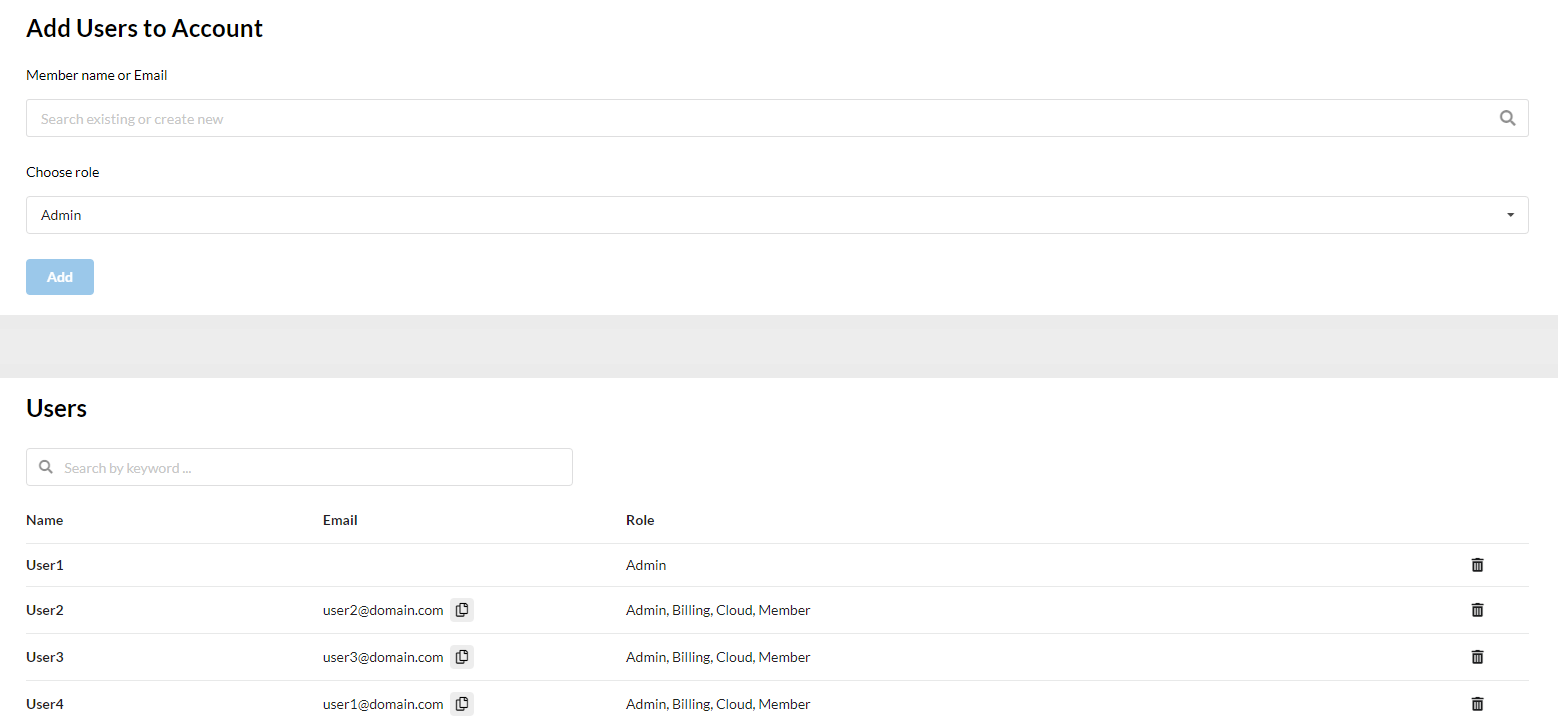
On the Users tab, the admin can add users in the account. It may be an existing user or the admin can create a new one by filling out a form. The admin can assign a role (it's possible to give more than one role) to a user and also delete a user or their role.
Adding existing members
- Go to the
Userstab. - Input the email address.
- Select the user from the drop-down list.
- Select a role for this user (
member,admin,owner, oroperator). - Click
Add.

Adding new members
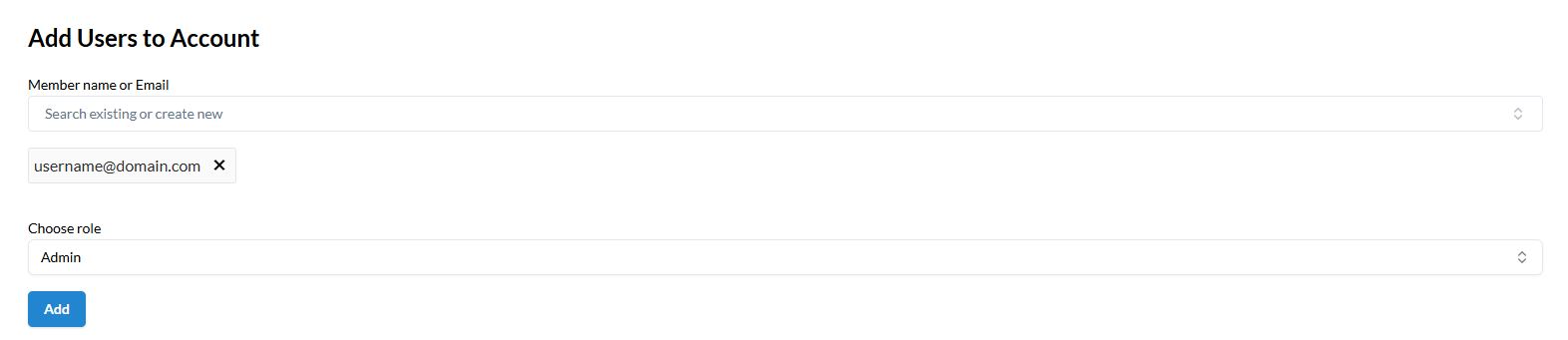
- Input the new email.
- Click
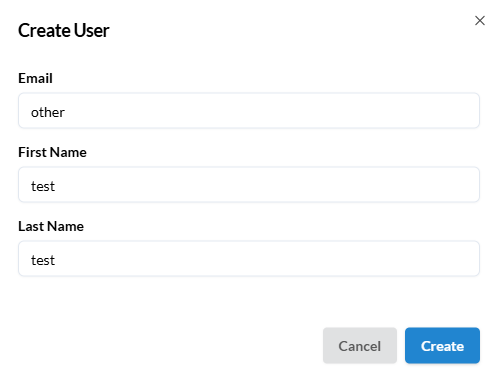
Add new user. - Fill out
First name,Last nameandEmailfields. - Click
Create. - Select a role for that user (
member,admin,owner, oroperator). - Click
Add.

User deletion
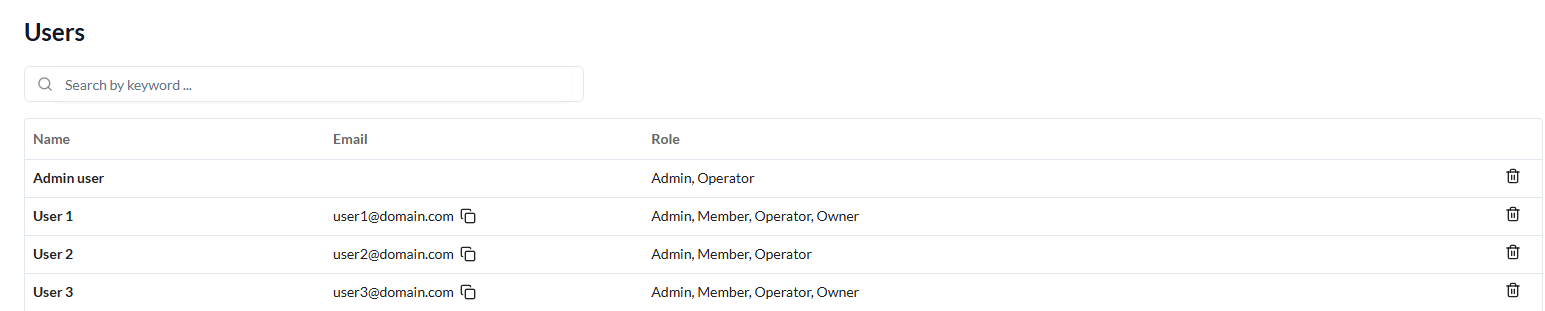
- Select a user from the list or find them using the
Searchfunction. - Click
Delete. - Select the required checkboxes.
- Click
Delete.
Info
To remove only specific roles from a user, select the corresponding checkboxes and click Delete.
Roles and Permissions
| Action | Member | Admin | Owner | Operator |
|---|---|---|---|---|
| View Account's Users | ✔ | ✔ | ✔ | ✔ |
| Add and Delete Users | - | ✔ | ✔ | ✔ |