Introduction
The ICDC Platform provides users with the ability to efficiently and securely manage computing resources.
This document describes the key concepts and main features of the platform, which form the foundation for users' interaction with cloud resources.
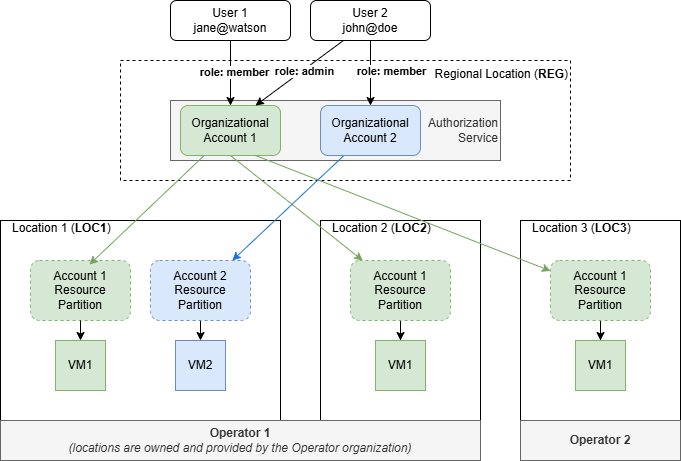
The diagram below illustrates the general structure of the interaction between Locations, Accounts, and Users within the platform:
Glossary
| Term | Functional purpose |
|---|---|
| Location | An autonomous part of the cloud installed on dedicated hardware (e.g., LOC1, LOC2, LOC3). It represents the physical location of computing resources such as virtual processors, RAM, and storage.Each location includes internal infrastructure components and has a unique three-letter code that incorporates a country code. Within a location, Accounts are created by the location administrator. A Location is managed by an Operator, who may use their own equipment or third-party hardware. |
| Operator | The owner of a private or public cloud business managing one or more Locations. |
| Regional Location (REG) | Manages user access and roles for Accounts and resources. |
| Account | An organizational structure where computing resources are hosted, and a group of users is defined. Each account is isolated within its own security perimeter, allowing users to create and manage their own information systems. Every user belongs to at least one account. An account can be accessible in multiple Locations simultaneously. |
| Resource Partition | A part of a Location's resources allocated to a specific Account and limited by the account's assigned quota. |
User Roles
The user's role determines the functionality available in the services:
| Role | Assignment | Scope |
|---|---|---|
Operator |
Owner of a public or private cloud business. | Objects of all Accounts in the Location. |
Owner |
Users fully responsible for account actions, security, and billing. | All objects within the Account. |
Admin |
Manages Account settings and user actions, ensuring security, but cannot manage billing. | All Account objects except billing settings. |
Member |
Views and uses all services of the Location. | Only their own objects. |
Browsers Compatibility
For consistent Platform performance and correct page display, we recommend using one of these compatible browser versions:
| Browser | Compatibility |
|---|---|
| Chrome | Version 57 and newer |
| Firefox | Version 52 and newer |
| Opera | Version 44 and newer |
| Safari | Version 12 and newer |
| Edge | Version 57 and newer |
| Internet Explorer | Not supported |
Authentication
To start using ICDC Platform services, you need to sign in.
-
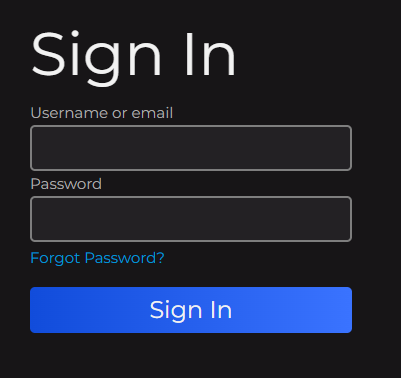
On the login page, fill in the following fields:
Username or email- your username or email address;- Password - your password.
-
Click the
Sign inbutton.
For improved security, it is recommended to use a One-Time Password (OTP). OTP can be configured in the user account console.
Setting Up Two-Factor Authentication
To enhance account security, you can enable two-factor authentication (2FA).
- Open your account console in Keycloak.
-
Navigate to:
Account security→Signing in→Two-factor authentication→Setup authenticator application. -
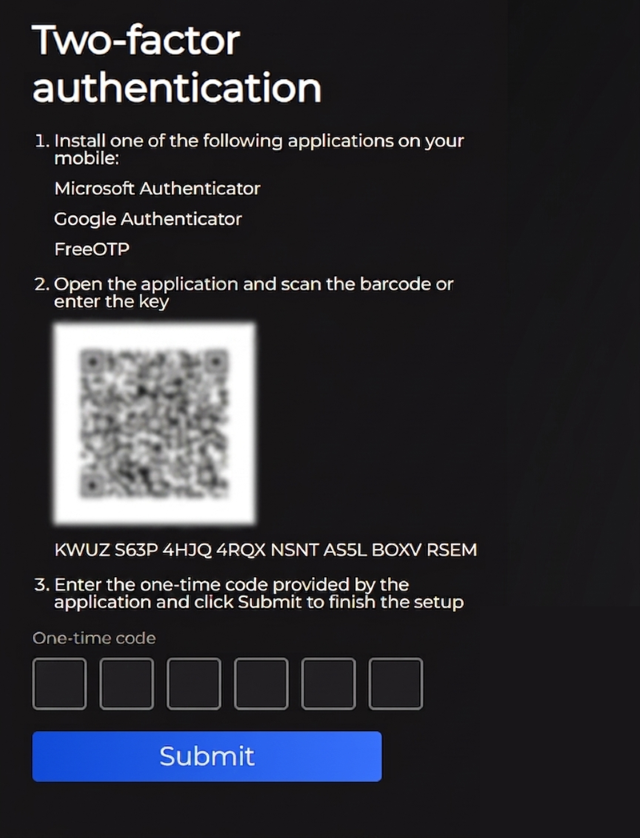
Follow the instructions:
-
Install one of the following authenticator apps on your mobile device:
- Microsoft Authenticator
- Google Authenticator
- FreeOTP
-
Open the app and scan the QR code or enter the provided key manually.
- Enter the one-time code generated by the app and click
Submitto complete the setup.
-
After completing these steps, two-factor authentication will be enabled.
You can manage OTP settings in the account console, including disabling two-factor authentication if needed.
Signing In with 2FA Enabled
If two-factor authentication is enabled, the login process includes two steps:
- Enter your
Username or emailandPassword. - Enter the one-time password (OTP) generated by your authenticator app.
