Migration of a Physical PC to the Cloud
Prerequisites before migration
Before starting the migration, make sure that you have:
- A backup of the physical PC or laptop.
- iSCSI support drivers installed on the PC, if required for the target cloud environment.
- A local administrator account on the PC.
- Sufficient storage space for the backup files.
Creating a Backup of the Physical PC
Use Redo Rescue to create a backup of the physical PC. The backup will be used to create a virtual machine in the cloud.
-
Download
redorescue4.0.isofrom the official Redo Rescue website. -
Create a Live CD or Live USB. Detailed instructions can be found in the Redo Rescue Help section.
-
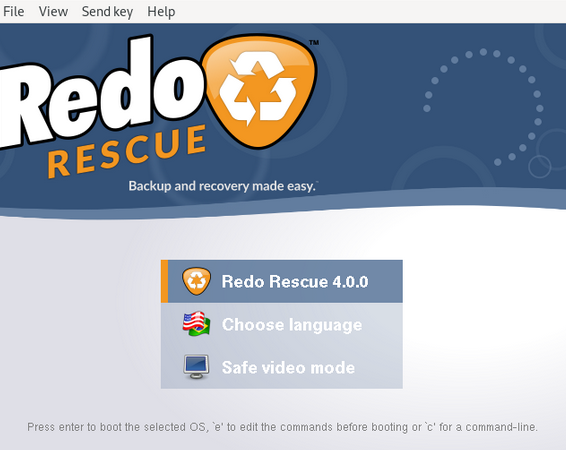
Boot the physical PC from the Live USB:
-
Select
Backup: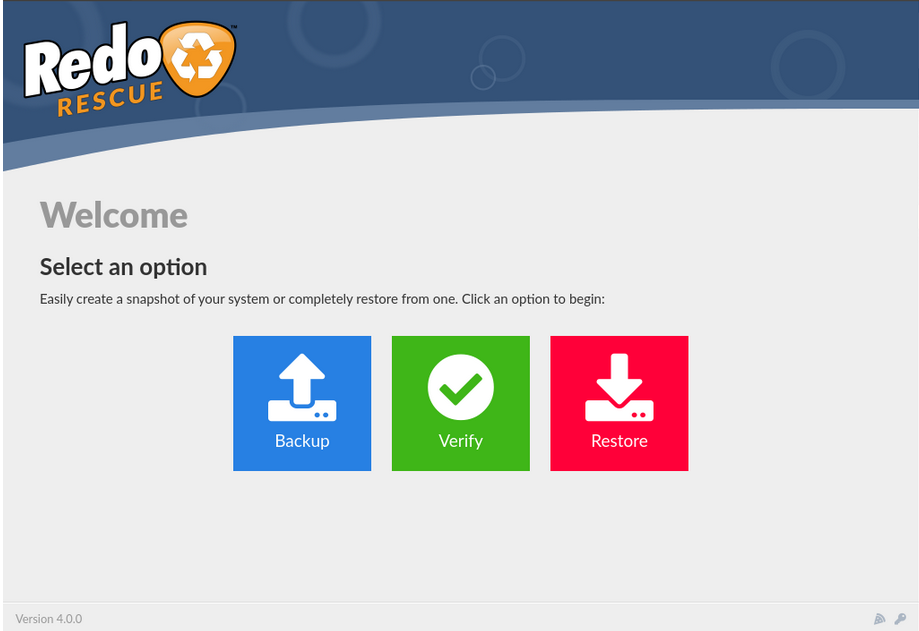
-
Select the volume to back up. For Windows OS migration, choose the volume containing the
C:drive.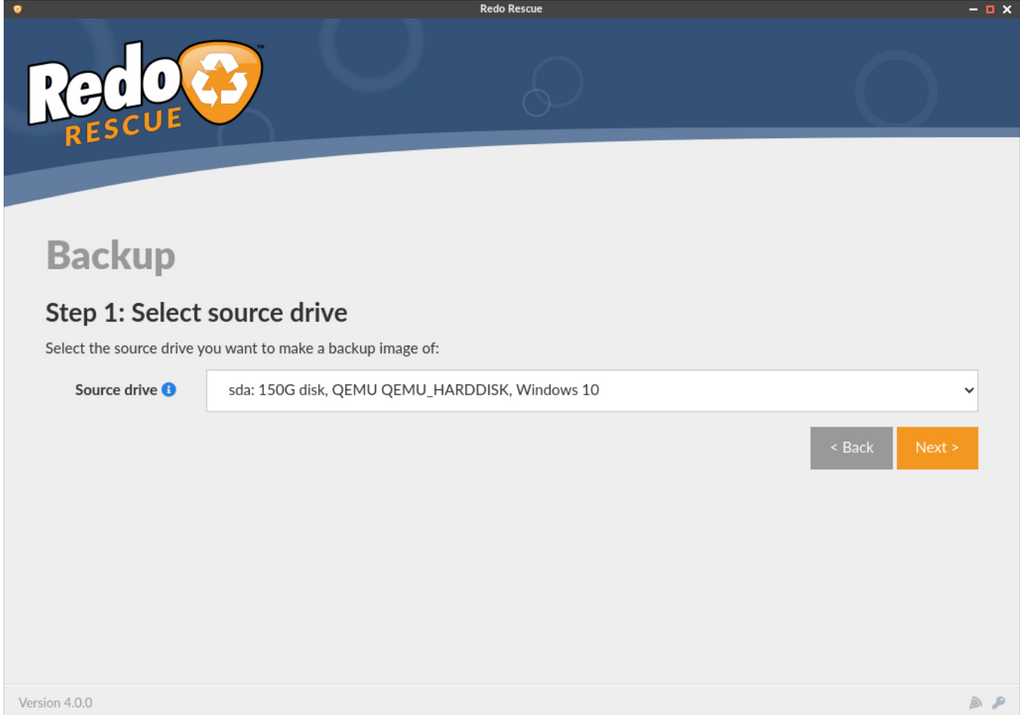
-
Select all partitions required to boot and run the operating system:
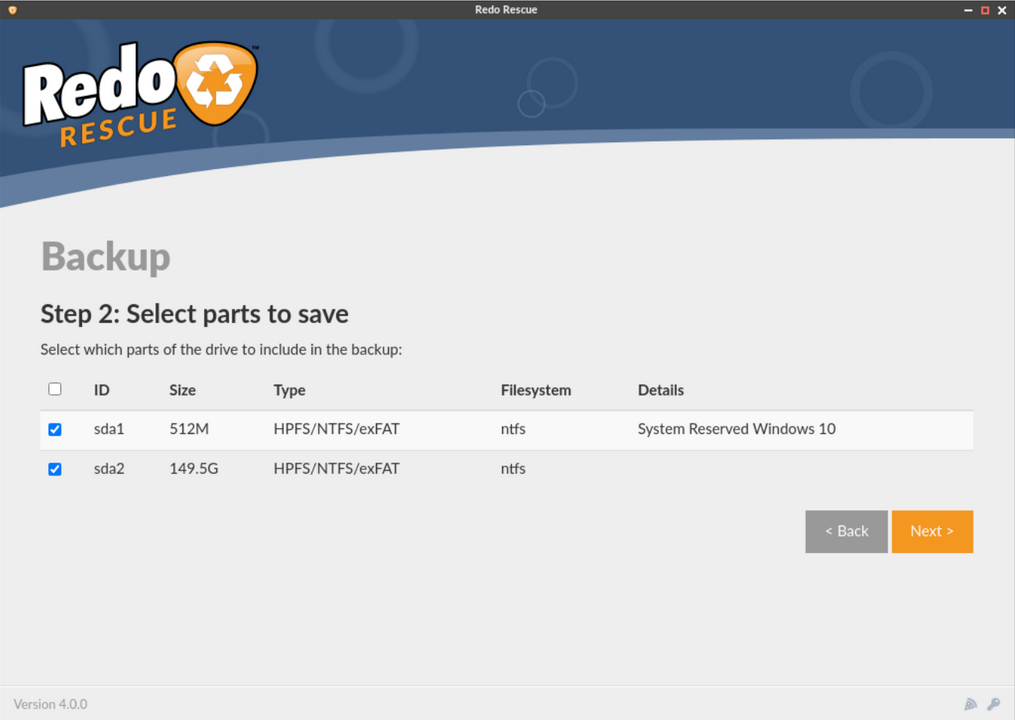
It is recommended to create a dedicated folder for the backup files.
-
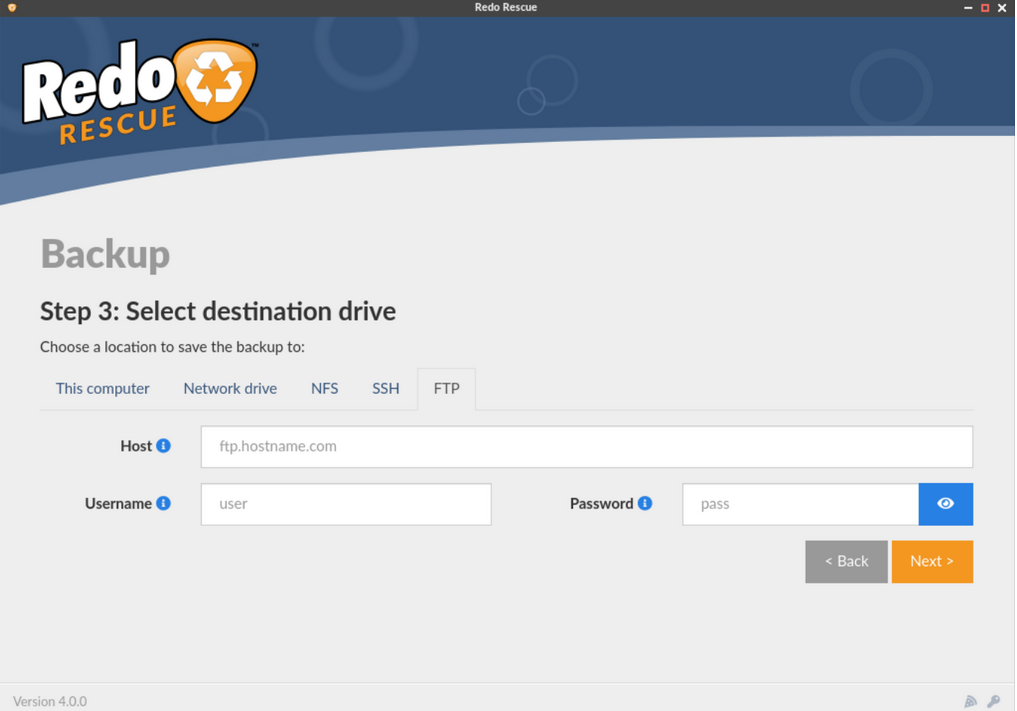
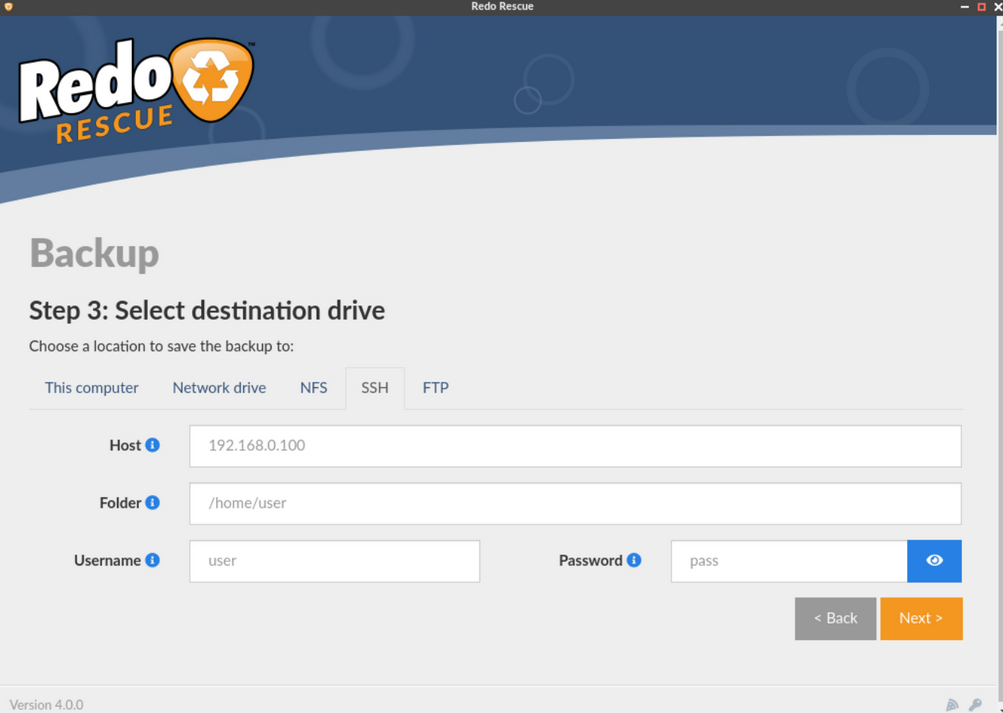
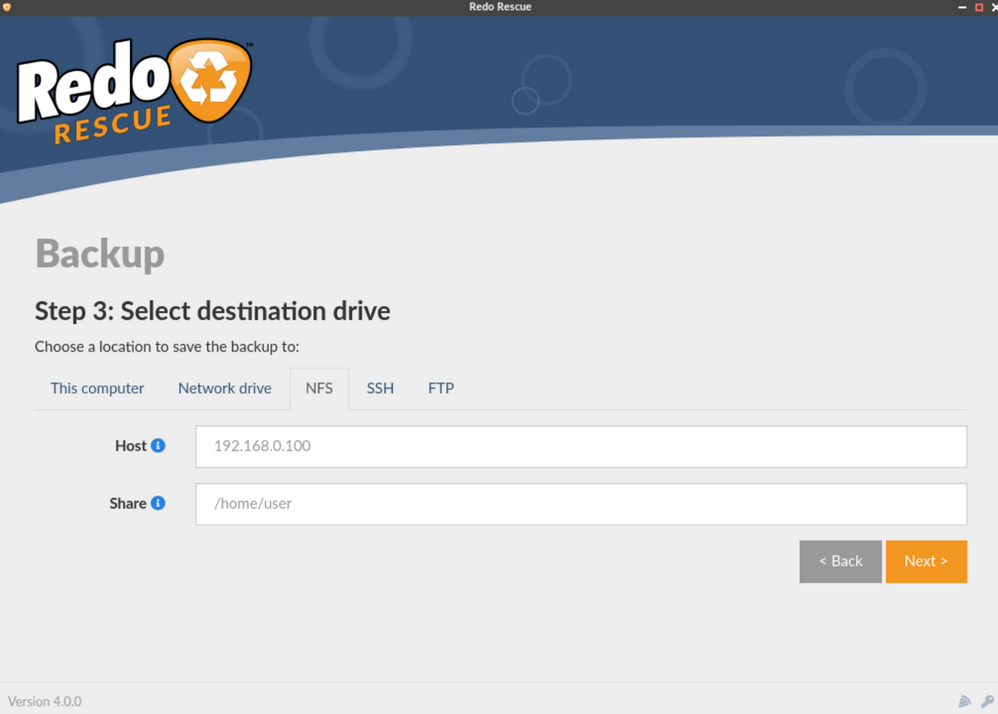
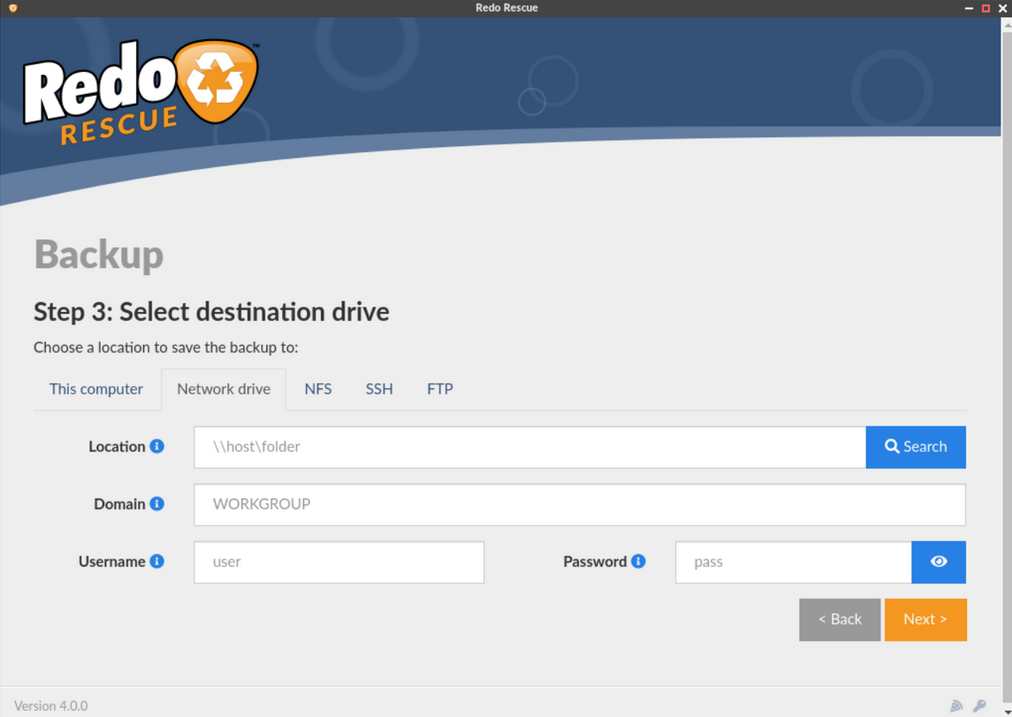
Select the appropriate backup destination.
FTP Backup:
SSH Backup (recommended):
NFS Backup:
Network Drive Backup:
Alternatively, you can use an external HDD or SSD to store the backup files.
Preparing the Backup Files
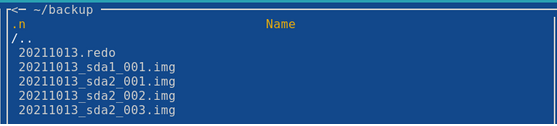
After the backup is completed, make sure that all required backup files have been successfully created and are available in the selected backup location.
Example of the generated backup files:
If required, you can create an archive containing the backup files. For example:
To unpack a Linux tar.gz archive:
Uploading the Backup to the Cloud
Contact the Support team to coordinate the S3 bucket where you should upload the resulting backup archive files.